How to Buy a Wi-Fi Mesh System Online in the UK: Thick Walls, Floors and Broadband
Mesh Wi-Fi can fix dead spots in British homes, but only if you buy the right kit for your walls and broadband. Here's how to choose without wasting money.

5 min read
Mesh Wi-Fi sounds like a magic fix for rubbish broadband. In a British home, it often is — but only if you buy the right kit for your walls, your floors, and the broadband you actually have. Get it wrong and you've spent money on a fancy box that performs worse than the router your provider sent you.
What Mesh Wi-Fi Actually Solves (and What It Doesn't)
Dead Spots vs Slow Broadband
If your broadband is slow in every room, mesh won't help. Mesh fixes coverage, not speed. If you're paying for superfast fibre and getting dial-up speeds everywhere, the problem is your line or your provider, not your router. Call them first. If you have fast broadband in the living room and nothing in the back bedroom, that's a coverage problem. Mesh is a good shout.
When a Single Router Is Enough
In a small flat or a one-bed terrace, a decent single router might do. Mesh earns its keep in larger homes, especially older ones with solid brick walls and multiple floors. If you live in a new-build with paper-thin walls, you might not need mesh at all.
Check Your Broadband First
Modem vs Router
Most UK homes get a combined modem-router from their provider. Mesh systems usually replace the router part but still need the modem. Some mesh kits have a modem built in; most don't. Check what you have before you buy. If you're on a cable service, you can often put the provider's hub into modem mode and use your own mesh. If you're on a standard fibre or ADSL connection, you'll likely need to connect the mesh to the existing router or use the mesh in bridge mode. This is the bit people get wrong.
Speed You Actually Pay For
Don't buy a mesh system that's slower than your broadband. If you're on a full-fibre package, you want a mesh that can handle those speeds. Otherwise you're paying for speed you'll never see.
The Kit Itself: What to Look For
Number of Units
One unit is just a router. Two units suit a flat or small house. Three units are for larger homes or those with awkward layouts. More units isn't always better — too many can cause interference. Start with two or three and add more only if needed.
Wi-Fi Standards
Wi-Fi 5 is fine for most. Wi-Fi 6 is better if you have lots of devices or want future-proofing. Wi-Fi 6E adds a new frequency band, but only some devices use it. For most UK homes, Wi-Fi 6 is a sensible sweet spot.
Backhaul: Wireless vs Wired
Backhaul is how the mesh units talk to each other. Wireless backhaul is easier but can be slower. Wired backhaul (using Ethernet cables) is faster and more reliable. If you can run cables, do it. If not, look for a system with a dedicated wireless backhaul band.
Ports and Ethernet
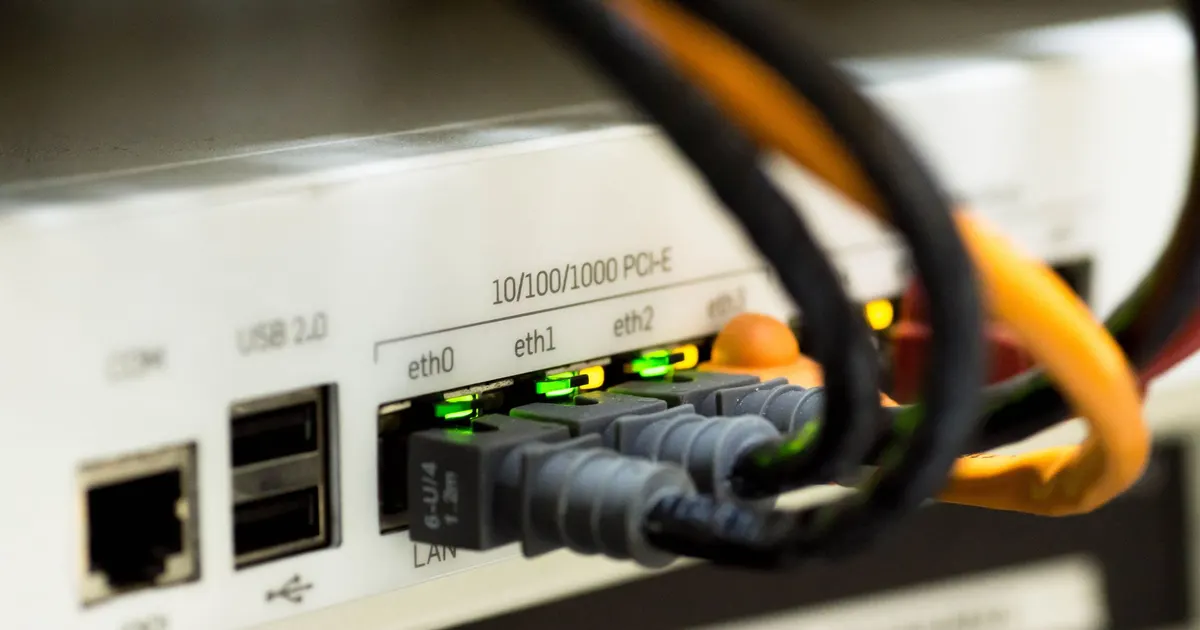
Check how many Ethernet ports each unit has. If you want to plug in a games console, TV, or desktop, you'll need them. Some mesh units have only one or two ports. That might be fine, but think ahead.
Placement in a British Home
Thick Walls and Chimney Breasts
Old British homes have solid brick walls, and sometimes chimney breasts that block Wi-Fi. Don't put your mesh unit behind a chimney breast or in a cupboard. Keep it out in the open, ideally on a shelf or sideboard.
Floors and Ceilings
Wi-Fi travels better horizontally than vertically. In a multi-storey house, place units on different floors but not directly above each other. Stagger them. If you have a basement or loft conversion, that's where a third unit might help.
Where Not to Put It
Avoid the kitchen (metal appliances), the bathroom (moisture), and anywhere near a microwave. Also, don't put it next to your TV or cordless phone base — they can interfere.
Buying Online: What to Check Before You Pay
Returns Policy
Mesh systems can be fiddly. Check the returns policy before you buy. You want a decent window to test it. Some retailers charge for return postage, some don't. Read the small print.
Compatibility with Your ISP
Some mesh systems work better with certain providers. Check forums or the product page for mentions of your ISP. If you're on a niche provider, do a bit of digging.
Firmware and App Support
A mesh system is only as good as its software. Look for regular firmware updates and a well-reviewed app. If the app is rubbish, you'll hate using it.
Setting It Up Without Losing the Will to Live
App vs Browser
Most mesh systems set up via an app. Some also have a browser interface. Apps are usually easier, but browser interfaces give more control. Either way, follow the instructions. Don't skip steps.
Naming and Passwords
Give your network a name that doesn't reveal your address or flat number. Use a strong password. Don't use the default one.
Testing Your Coverage
Once set up, walk around your home with your phone or laptop. Check signal strength in every room. Use a Wi-Fi analyser app to see dead spots. Move units if needed. It might take a few tries.
When to Return It
If you've tried placement, updated firmware, and still have dead spots or dropouts, return it. Don't persevere for weeks. A good mesh system should just work. If it doesn't, it's not the right one for your home.
Mesh Wi-Fi can transform your home network, but only if you buy for your actual walls and broadband. Check your modem setup, pick the right number of units, and place them sensibly. And always check the returns policy. A little homework saves a lot of frustration.